

Google Lighthouse accessibility score: what a 100 counts, and what to test by hand


Right below the Google Lighthouse accessibility score, a store owner reading the report finds ten checks to do themselves, and the score counts none of them. Lighthouse, the engine behind PageSpeed Insights, grades the page on rules a program can judge alone: 58 at most in version 13.6. A 100 covers those rules, and everything else gets checked by hand, on the same page.
A store scored 100, zoomed to 200%
#How the Google Lighthouse accessibility score is calculated?
PageSpeed Insights, Google's online test, runs Lighthouse on the URL it's given, for mobile and desktop. Lighthouse takes its rules from axe-core, a set of automated tests, and each rule looks in the code for a flaw that gets in someone's way. One checks that the viewport tag, which sets how the page displays on a phone, still lets people with low vision zoom in.
The score is a weighted average. In Lighthouse 13.6, the version we tested with, 58 rules count toward it, each weighted 10, 7, 3 or 1 by severity. A single faulty element fails its rule for the whole page, with no partial credit. A rule with nothing to check drops out of the calculation, so a page without input fields is never graded on them.
Lighthouse judges the page right after it loads, on one simulated device: a 412 by 823 pixel phone or a 1,350 by 940 desktop window. Below the score, the report lists ten checks under “Additional items to manually check”, with no weight. Lighthouse describes them as areas an automated tool can't cover, like keyboard access to every control.
We ran Lighthouse on the home page of Havoc & Pawns, a demo board game store. On a first visit, a cookie consent dialog opens over it. On mobile and desktop, the home page scores 100, and only 27 rules find anything to judge. The other 31, plus five rules that carry no weight, land under “Not applicable”.
 Marker 1. The accessibility score: 100. Marker 2. The “Additional items to manually check” group, ten checks, collapsed, with its sentence on what an automated tool cannot cover.
 Shopify theme accessibility: what Shopify checked, and what's left to test
#How to test a page that scores 100: zoom to 200% in Chrome?
The test takes no tool: in Chrome, hold Ctrl (⌘ on a Mac) and press the plus key until the zoom reaches 200%. Then use the page the way a person with low vision does when they zoom in to read.
WCAG 2.2 makes this its success criterion 1.4.4: text must resize up to 200% without losing content or functionality, captions and images of text excepted. Any one browser feature that gets there is enough, whole-page zoom included. EN 301 549, the European standard written to help businesses meet the European Accessibility Act, copies the criterion into its requirements for web pages.
#What happens to the demo store at 200%?
In our Chrome window, the page gets 1,100 by 633 pixels below the address bar. At 200%, that drops to 550 by 316, since each page pixel is now drawn twice as large. The cookie dialog, fixed in the middle of the screen, is then 587 pixels tall. Its title ends up above the top edge, and its two buttons fall below the bottom edge.
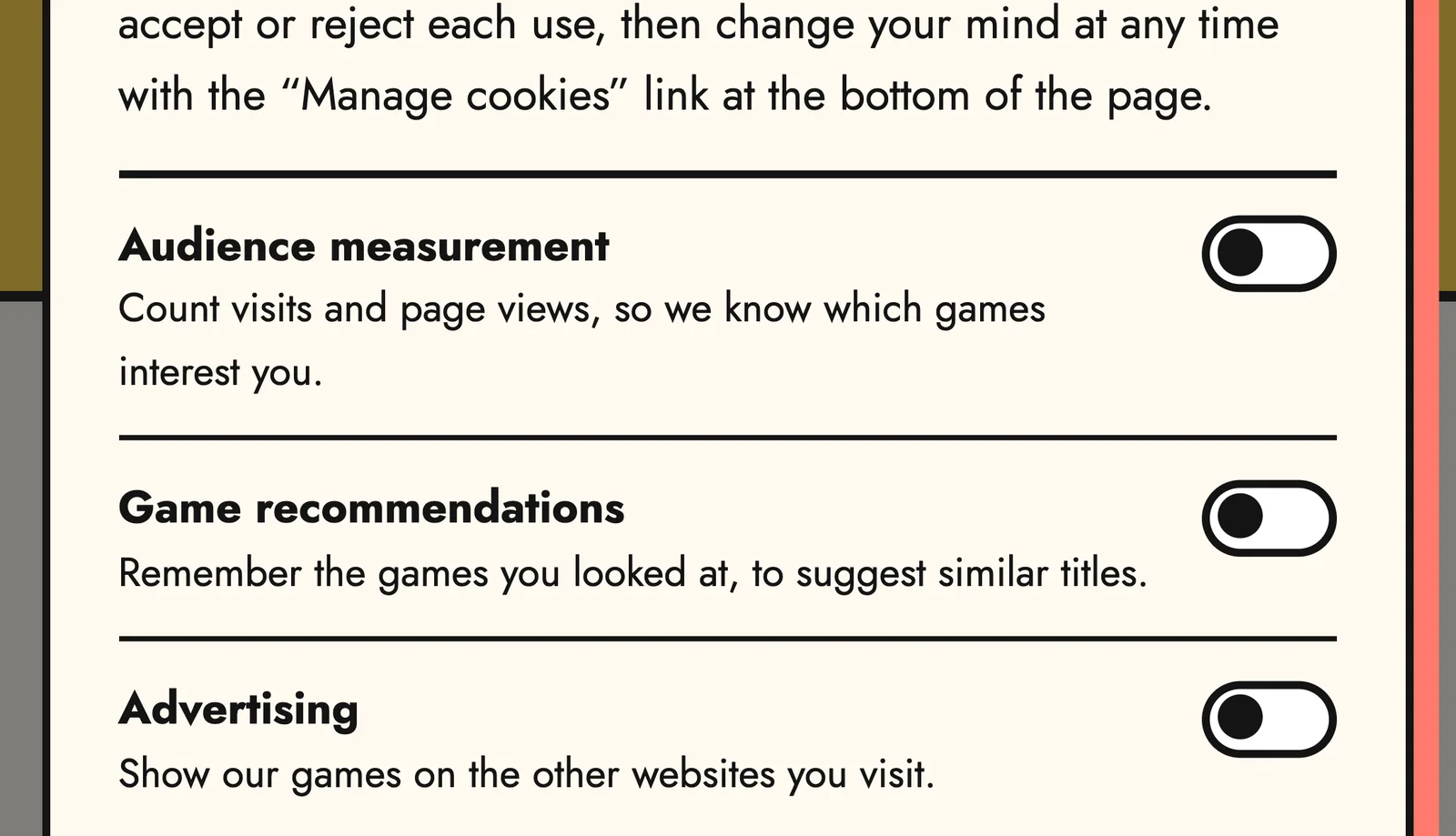
The mouse wheel scrolls the page behind the gray overlay, never the dialog. The Tab key does reach “Reject all” and “Accept all”, except that both stay off screen, so a keyboard user presses a button they can't see. With a mouse, a person who zoomed in can neither accept nor reject, and the store stays stuck behind the overlay.
We ran the test again, this time doubling only the text size in Chrome's font settings, and the buttons still left the screen. Whole page or text alone, the dialog fails the 200% test, because it's fixed in the middle of the screen and its content doesn't scroll. Zoom into the demo page yourself to see it.
#Why the score stays at 100?
In both screens Lighthouse simulates, the cookie dialog fits in full, with named buttons and enough contrast, so every rule passes.
| Screen | Visible height, in page pixels | Cookie dialog height |
|---|---|---|
| Phone simulated by Lighthouse | 823 | 749 |
| Desktop simulated by Lighthouse | 940 | 564 |
| Chrome window zoomed to 200% | 316 | 587 |
The simulated phone offers 823 pixels of height, Chrome's zoomed screen 316: just over half the cookie dialog. A 100 on mobile therefore says nothing about zoom. Zooming in shrinks the height of the screen too, and height is what runs out here.
The only rule in the score that touches zoom checks that the viewport tag doesn't block it, and the store doesn't. None of the rules looks at the page once it's zoomed. We then made the dialog scroll whenever it runs past the screen (fixed version). At 200%, the mouse wheel and the Tab key now bring its buttons into view. Lighthouse still gives it 100: the score can't tell the two versions apart.
#What to do with a good accessibility score on your website?
File the dated report with what a person checked by hand on the tested page. The 100 covers what a program read in that one page's code when it loaded, as the bottom of the report itself shows.

#What the report proves for a store the law covers?
Directive (EU) 2019/882, the European Accessibility Act, covers online stores that sell to consumers too, through each member state's own law. Since June 28, 2025, a covered store has had to explain how its service meets the accessibility requirements, in its general terms and conditions or an equivalent document. It also has to keep that information for as long as the service runs, and have procedures in place to stay compliant.
When a national authority that checks compliance asks, giving its reasons, the store has to hand over all the information needed to show its service complies. A microenterprise that provides services is exempt from the accessibility requirements and from these obligations. A microenterprise is a business that employs fewer than 10 people and has an annual turnover or balance sheet total of €2 million or less (who is covered).
A Lighthouse score and an audit's verdict count different things, and neither converts into the other. To talk about compliance, an audit checks every level A and AA criterion on a sample of pages, every page of the checkout included, as WCAG's evaluation method lays out. A page conforms at level AA only when it meets all of them, with no weights and no average.
 Website accessibility audit: cost, quotes and how to choose an auditor
#What to ask the agency next?
Start by asking the web agency to fix whatever the score flags. Then have it run the 200% zoom test and the keyboard test on the home page (cookie dialog included), a product page, the cart and checkout. For each page, it notes the date, the tool, its version and what was checked by hand.
For Havoc & Pawns, our demo store, the file for the home page before the fix fits on two lines: the Lighthouse 13.6.0 report, 100; the cookie dialog at 200%, buttons off screen, to fix. The first line comes from a program, the second from a person, on the same page.
Also ask what was checked by hand among the ten “Additional items to manually check” in the report, and what is left to do. To talk about compliance, add a quote for an audit on a sample of pages, checkout flow included.
The zoom test needs no tool. On a live page, Includdy's scan lists the accessibility issues it detects. Its guided manual tests go through headings, images, lists, links and buttons, colors and required elements, with a suggested verdict for each item that a person confirms or corrects. For compliance, Includdy also carries out accessibility audits.