
Shopify theme accessibility: what Shopify checked, and what's left to test


When a merchant picks an “accessible” Shopify theme, that word comes from the theme's developer. The Shopify Theme Store has no accessibility label. Shopify does require keyboard navigation from a theme, and an average Lighthouse accessibility score of at least 90, measured on a benchmark store. The merchant's own store, apps included, still needs a keyboard test before handoff.
From the reviewed theme to the store you hand over
#What the Shopify Theme Store requirements check?
Before a theme goes on the Theme Store, Shopify checks the theme itself: its score in Lighthouse (the audit tool built into Chrome) and a list of requirements. Shopify calls this the theme review, and a theme that misses a single requirement gets rejected.
The score is measured on a benchmark store filled with real images and content, where Shopify loads the theme's code. The theme needs an average of at least 90 across the product page, the collection page and the home page, on desktop and on mobile.
The requirements ask for a page that works entirely from the keyboard, dropdown menus included, for people who don't use a mouse. The focus outline, which marks the item the keyboard is on, has to be visible, and focus has to move in page order. Labeled form fields, minimum contrast and an alt attribute on every image, the slot for its description, are on the list too. The requirement only asks for the attribute, though: the merchant types the alt text.
#Where the word “accessible” on a theme listing comes from?
The word comes from the theme's developer, who writes the whole listing. One paid theme's listing promises “an accessibility-focused theme”, which reads best as sales copy. Listed features work differently: developers pick them from a list that Shopify defines and describes. The only “accessible” in that list belongs to the slide-out cart, or cart drawer, the panel that slides in from the side: “Make cart accessible from any page”, meaning reachable.
 Marker 1. The twenty “Features” filters, from “Account menu” to “Swatch filters”.
#What the theme review never sees?
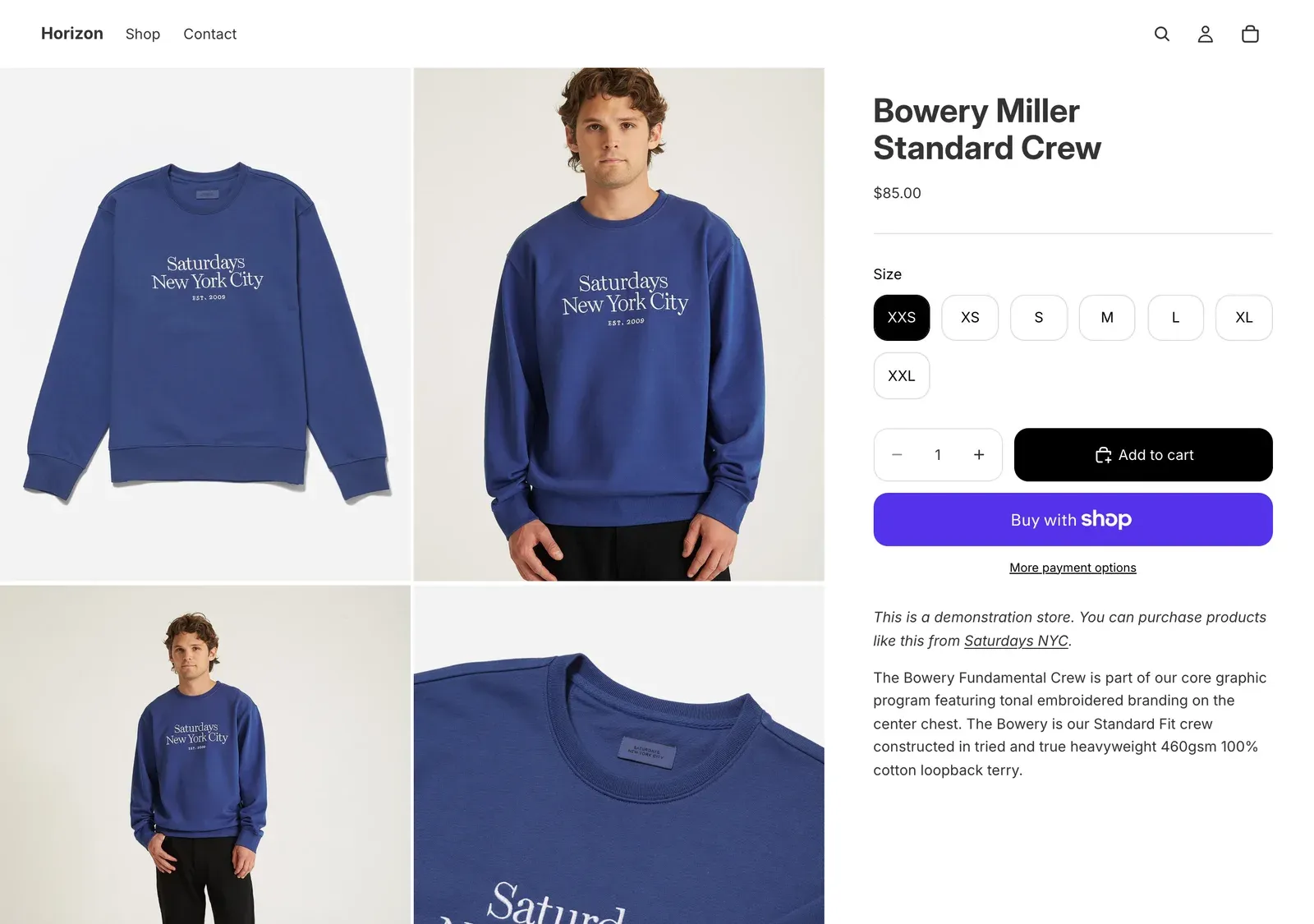
The settings, photos and apps on the client's store never go through the review. Even a theme's public demo store, which its developer builds, can't use apps, apart from free product review or translation apps in some cases. Our test case is the demo store of Horizon, a free Shopify theme held to the review's requirements, with a cart drawer.
 WordPress accessibility audit: where each issue comes from, and who fixes it
#How to test a Shopify store's accessibility before handoff?
Run Lighthouse, then go through the purchase path with the keyboard, page by page, because the score includes none of the checks done by hand.
#What the Lighthouse score says about the Horizon demo?
Our notes come from the Horizon demo store, version 4.4.0, which Shopify set up. Version 4.5.0, released on November 10, 2026, announces screen reader improvements, but its release notes mention neither the sticky add-to-cart bar nor the cart drawer.
In the default mode, we got 100 for the home page, on desktop and mobile, and 95 for the “Bowery Miller Standard Crew” product page on desktop. Lighthouse warns that the page loaded too slowly. Given two minutes to load, it still scores 95.
 Marker 1. The product page's accessibility score, 95.
Below the score, the section “Additional items to manually check” lists ten checks that don't count toward it. Two of them matter here: “The page has a logical tab order” and “Offscreen content is hidden from assistive technology”.
 Marker 1. The check “The page has a logical tab order”. Marker 2. The check “Offscreen content is hidden from assistive technology”.
The default mode analyzes the page as it loads, cart drawer closed, so the 95 says nothing about the open panel. Open the panel, then run Lighthouse in “Snapshot” mode, which audits the page as it stands, accessibility included.
#What Horizon's cart drawer does with a keyboard?
An accessible cart drawer follows four rules: when it opens, focus moves into it; Tab stays inside; Escape closes it; focus returns to the button that opened it.
We opened the drawer in a window of 1,280 by 900 pixels. From the top of the product page, the eighteenth press of Tab reaches the “Add to cart” button, after size and quantity. Enter adds the item: the cart count goes to 1, no panel opens, and focus stays on the button. Back on “Cart”, Enter opens the cart drawer and puts focus on “Close”.
 Marker 1. The “Close” button of the cart drawer, which gets focus when the drawer opens. Marker 2. The two payment buttons under “Check out”, which the Tab key skips.
Inside the drawer, Tab moves through eight elements, from the product photo to “Check out”, then loops back to “Close”. Esc closes the panel and returns focus to “Cart”. The W3C, the body that writes web standards, gives three moves in its modal dialog pattern, for windows that open over the page: take focus, keep it, give it back. The cart drawer gets all three right, except that Tab skips the two payment buttons.
#What the path to the Add to cart button shows?
Now for the eighteen presses before the buy button. The first seven follow the header, from the skip link “Skip to content”, which jumps to the main content, to the “Cart” button.
The eighth sends focus to a second, invisible “Add to cart” button: the one in the sticky add-to-cart bar, which keeps that button in view as the page scrolls. At the top of the page, this button is fully transparent and 931 pixels down, below the bottom of the 900-pixel window. Nothing moves on screen, and the keyboard user no longer knows where they are.
WCAG, the W3C's accessibility guidelines, covers this case with the Focus Visible criterion: each element that receives focus needs a visible indicator. EN 301 549 makes that criterion a requirement for every web page. It's the European standard written as one voluntary way to meet the European Accessibility Act.
Shopify even lists this kind of bar among its theme features, as “sticky cart”. On Horizon, the first suspect was the cart drawer. The lost press lands on this bar instead, on a page that scores 95. Lighthouse leaves that check to a person. We ran it at the top of the product page, at that window size.
#What the client's store adds to the path?
A Shopify app injects markup that neither you nor the theme controls: a chat launcher with no accessible name or a popup that traps focus is enough to break a compliant theme.
On the client's store, an app that displays something, such as a sign-up popup, a chat or reviews, arrives as a block the merchant turns on. Shopify's accessibility best practices say a theme “must” work with the keyboard, and an app only “should”.
The App Store requirements, as we read them on November 7, 2026, say nothing about the accessibility of what an app displays in the store. Still, the W3C says a sticky cookie banner that fully hides the focused element fails the Focus Not Obscured criterion. Run the test again with apps turned on, on the home page, a collection, a product page and the cart:
 RGAA 5: get compliant before the new version is released
#Who tests what after you hand over the store?
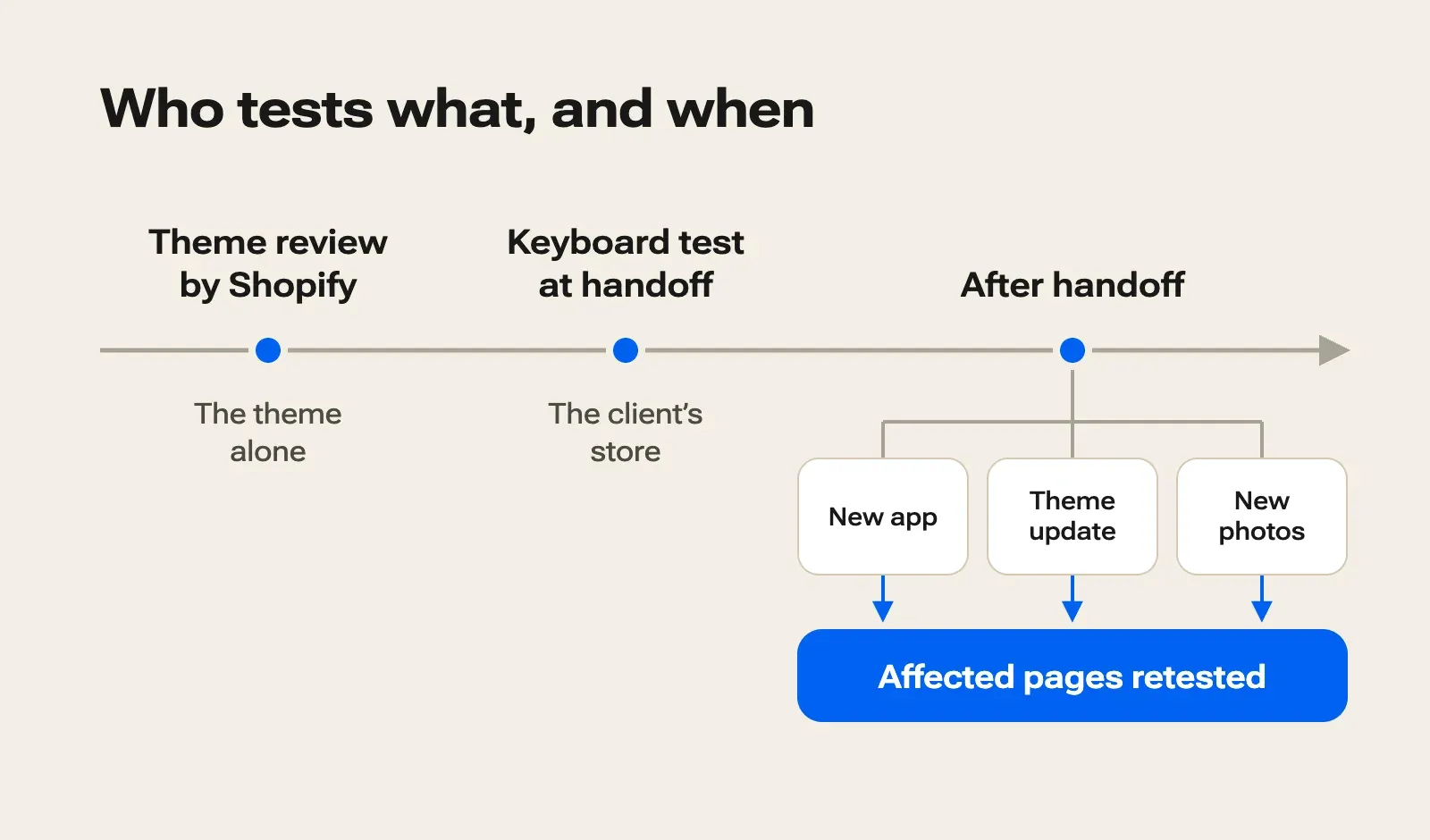
At handoff, tell the client who checked what, then who handles each later change. Shopify checked the theme during its review. The agency tested the client's store with a keyboard, on a given date, with apps turned on.
Shopify's accessibility report on its checkout says it: merchants are responsible for assessing and ensuring that their store complies with applicable laws, the European Accessibility Act among them. The merchant hears it from Shopify itself.
After handoff, a theme update comes from the theme's developer, who is expected to fix its bugs, and an app, from the app's own developer. Photos, their alt text, and the colors of both the store and the checkout belong to the merchant. The checkout itself stays with Shopify. The agency looks after its own settings and code, a rule worth putting in writing.
Each of these changes calls for a new test of the pages it touches. Anything an app displays arrives turned off, so its test happens on the day the merchant turns it on.
On the Horizon demo, our keyboard test found two flaws in the theme: the invisible button in the sticky bar and the skipped payment buttons. Report those to the theme's developer. For Horizon, that's Shopify itself, the author of the sentence that puts the store's compliance on the merchant.
 Forgotten Accessibility in Specifications: Who Pays the Bill?
Before handoff, the agency can scan one page of each type in the client's store with Includdy, apps turned on. The scan lists the accessibility issues, each with its own test plan for the team to replay. After each new app, run the scan again on the pages where the app appears.