
Screen reader not reading aria-describedby? Find the cause in two checks


A developer who arrows through a form with NVDA hears none of the hints tied to its fields with aria-describedby. With default settings, NVDA is programmed to speak that text, the field's description, when the field gets focus with Tab or when you jump to it with the F key. If NVDA stays silent even on Tab, Chrome's Accessibility tab shows whether the browser computed a description.
Testing with the right key, then reading the Accessibility tab
#Why doesn't NVDA read aria-describedby with the arrow keys?
With the arrow keys, NVDA stays in browse mode, and its code doesn't speak the description of a field reached that way. That description is the text of the element whose id the WAI-ARIA attribute names. A screen reader such as NVDA, free on Windows, reads it after the field's name, role and states, so a person who can't see the screen still gets the hint. WCAG lists this as a technique for its Labels or Instructions criterion.
In browse mode, the page reads like a plain text document. Tab switches NVDA to focus mode, where almost every key goes straight to the field. The arrow keys don't: the option that would make them switch is off by default. NVDA 2026.3.1's code speaks the description when the field gets focus, with Tab, or through quick navigation, where the F key jumps to the next form field. NVDA's release notes announced both cases in version 2011.2. With the arrow keys, a visible hint therefore comes through as one more line of the page, and NVDA doesn't say it belongs to the field. Our NVDA guide explains both modes.
#What should NVDA say for each key?
Our example uses three versions of the “Manage my booking” page at Tarrow Island Ferries. Under the “Booking code” field, a sentence tells passengers where to find it.
 Marker 1. The Booking code field. Marker 2. The hint tied with aria-describedby, under the field.
With the arrow keys, NVDA reads this field without its hint, even though the HTML of this first version is correct. Check your tests against this table.
| Key | What NVDA says about the field |
|---|---|
| Down arrow or Say All (continuous reading) | The field, without the hint |
| Tab | Name, role and states, the hint, then the field's content |
| F | The field and its hint |
If the field stays silent on Tab, first press NVDA+Ctrl+O to open the Object Presentation category of NVDA's settings. Its “Report object descriptions” box is checked by default, though a colleague may have unchecked it on a shared computer. If the box is checked, the problem lies in the page. On a Mac, NVDA runs in a Windows virtual machine.
 NVDA screen reader: how to install it, set it up and test a web page
#Why is aria-describedby not announced, even on Tab?
When NVDA stays silent even on Tab, Chrome's Accessibility tab shows whether the field has a description. Without one, NVDA has nothing to read: the referenced id leads to no element, or its text is empty. Select the field in the Elements panel of the developer tools, then open the Accessibility tab, which sometimes hides behind the More Tabs button (Chrome's DevTools reference). Under Computed Properties, a Description row appears right below Name when the field has one.
#What makes aria-describedby reference an invalid id?
In the second version of our example, the attribute reads aria-describedby="#code-hint". In the Accessibility tab, we found the field's name and role, and no Description row.
 Marker 1. The aria-describedby: #code-hint row of the ARIA attributes. Marker 2. The Name and Role rows of the computed properties, with no Description row between them.
In HTML, the value is a list of ids separated by spaces, written without the hash that CSS selectors use. The browser ignores any id it can't find in the field's own page, as ARIA 1.2 asks. The content of an iframe counts as a separate page.
| Mistake | Value written |
|---|---|
| Hash | #code-hint |
| Typo | code-hnit |
| Different case | Code-hint |
| Comma with no space | code-hint,code-error |
| Field in an iframe, hint in the parent page | code-hint |
Other mistakes leave an incomplete or wrong description. With a comma and a space, code-hint, code-error keeps only the text of code-error. A list with one wrong id keeps the text of the correct ones. For a duplicate id, say from a component rendered twice, ARIA tells the browser to use the first element that carries it. On our test page, the second field picked up the first one's hint. Read the Description row to the end.
On that page, the automated testing engine axe-core 4.14.1 reports none of these mistakes as a violation. It files the five mistakes in the table and the duplicate id under “needs review”, for a person to check. It doesn't flag the two incomplete descriptions.
#Does aria-describedby still work on a hidden element?
Yes: a hint hidden with display:none is still the field's description. In the third version of our example, the hint carries style="display: none". Nothing appears under the field, yet the Accessibility tab showed us the whole sentence.
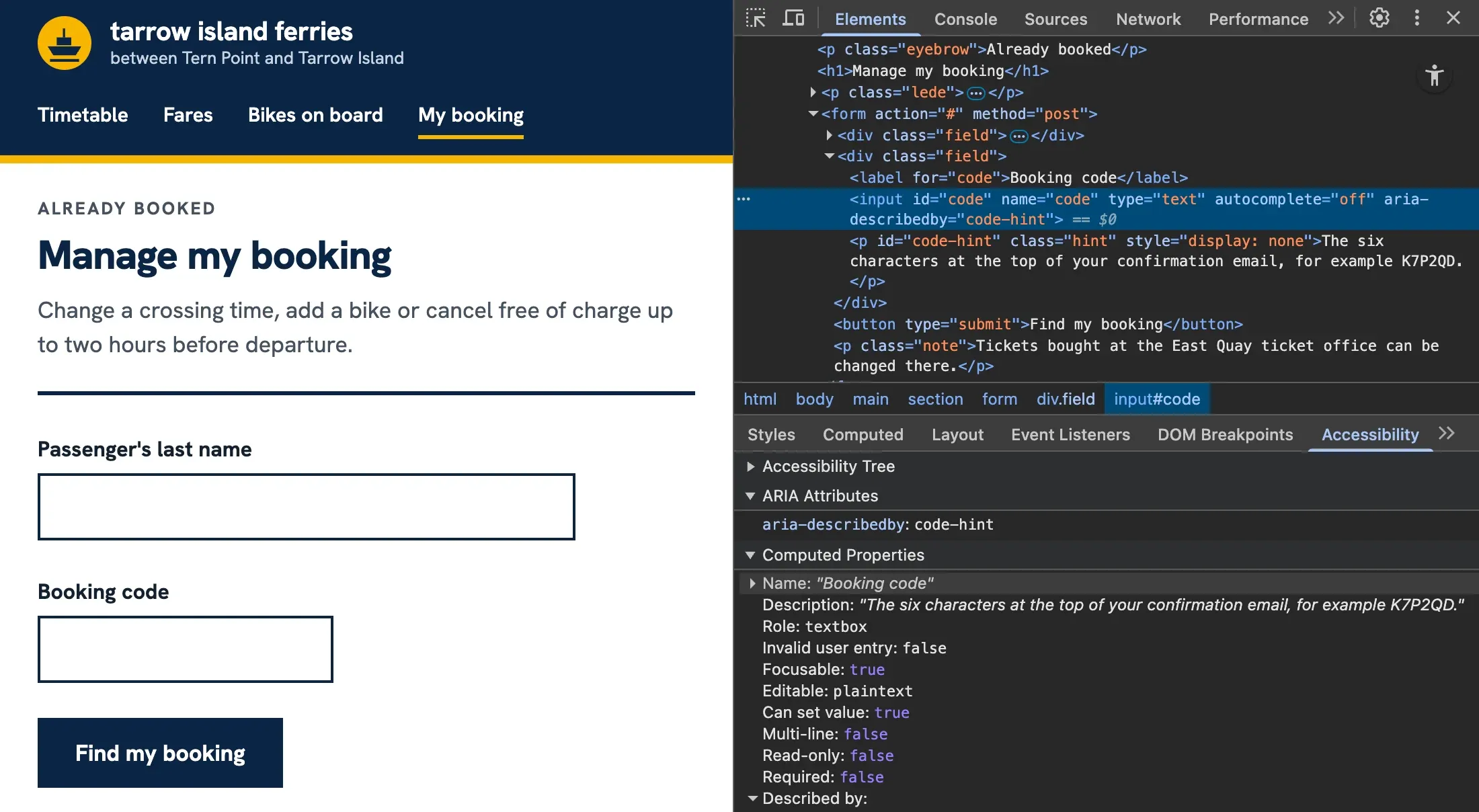
AccName 1.1, the W3C standard that sets how browsers compute names and descriptions, says a hidden element's text still counts when aria-describedby points to it directly. On our test page, Chrome kept text hidden with the hidden attribute, with visibility:hidden, with aria-hidden="true", or inside a parent hidden with display:none or aria-hidden. The silence in our three versions therefore comes from the id or the key pressed, and display:none plays no part.
Hiding the hint takes it away from sighted visitors. The W3C's explanation of the WCAG criterion Labels or Instructions covers this case. A field can have the right description and still fail it when its instructions reach only people using assistive technology. In Europe, the standard EN 301 549, written as one voluntary way to comply with the European Accessibility Act, requires every web page to meet that criterion. Keep the hint on screen.
 The aria-hidden attribute: when to use it, and what to do when Tab reaches what it hides
#How do you fix the field and check that NVDA reads the hint?
The fixed field references the exact id of its hint, without the hash. The hint stays visible, its id is unique on the page, and its text is already there when the field gets focus. On Tab, NVDA is programmed to say the field's name, its role (“edit”), then the hint.
 Marker 1. The hint, under the Booking code field.
Avoid
<label for="code">Booking code</label>
<input id="code" name="code" type="text" aria-describedby="#code-hint">
<p id="code-hint">
  The six characters at the top of your confirmation email, for example K7P2QD.
</p>Correct
<label for="code">Booking code</label>
<input id="code" name="code" type="text" aria-describedby="code-hint">
<p id="code-hint">
  The six characters at the top of your confirmation email, for example K7P2QD.
</p>The fix removes a single character. An error message's id goes after a space: aria-describedby="code-hint code-error". The description follows the order of the ids.
A hint of a few words, such as a format or a character count, can go inside the label, in a span: it then becomes part of the field's name, with no ARIA. For these simple cases, the W3C tutorial on form instructions calls that approach reliable across browsers and assistive technologies. It warns that instructions outside the label can be missed, and that some browsers, typically older ones, ignore them, as do some assistive technologies that don't implement ARIA. We keep the label for a short, essential hint, and aria-describedby for a visible help sentence like the one in our example.
 Accessible forms in HTML: required fields, error messages and validation
#How do you check what NVDA says about the fixed field?
Rerun the test from the keyboard with NVDA's Speech Viewer open: it writes out everything NVDA says.
In the NVDA menu, open Tools and check Speech Viewer.
From the last link in the page's menu, focus lands on the last name field, and NVDA switches to focus mode.
Focus moves to the “Booking code” field: the Speech Viewer should show its name, its role, then the hint.
NVDA announces the field again, hint included, without leaving it.
Our screenshots of the hashed and fixed versions are pixel-identical: the mistake doesn't show on screen. Only the fixed version shows a Description row in Chrome's Accessibility tab: the text NVDA reads on Tab or the F key. With the arrow keys, NVDA still reads the fixed field without its hint: that silence was never the bug.
Together, the Includdy scan and its manual testing guides for forms find almost every problem in a whole form. Each issue comes with a test plan, listing the steps and the result to expect, that the whole team can replay.