
“Read more” links: make them accessible without changing the design


Six cards, six “Read more” links: on screen, each one makes sense thanks to the title above it, but a screen reader's links list shows the same line six times. The fix is small and leaves the design alone: inside the link, after the visible words, add hidden text that repeats the card's title. Here's the template to copy and how to check the result in the NVDA screen reader.
From the links list to the template
#Why “Read more” links are a problem for screen reader users?
With a screen reader, each link can be read alone, outside its card, and six identical “Read more” or “Learn more” links no longer say where each one goes.
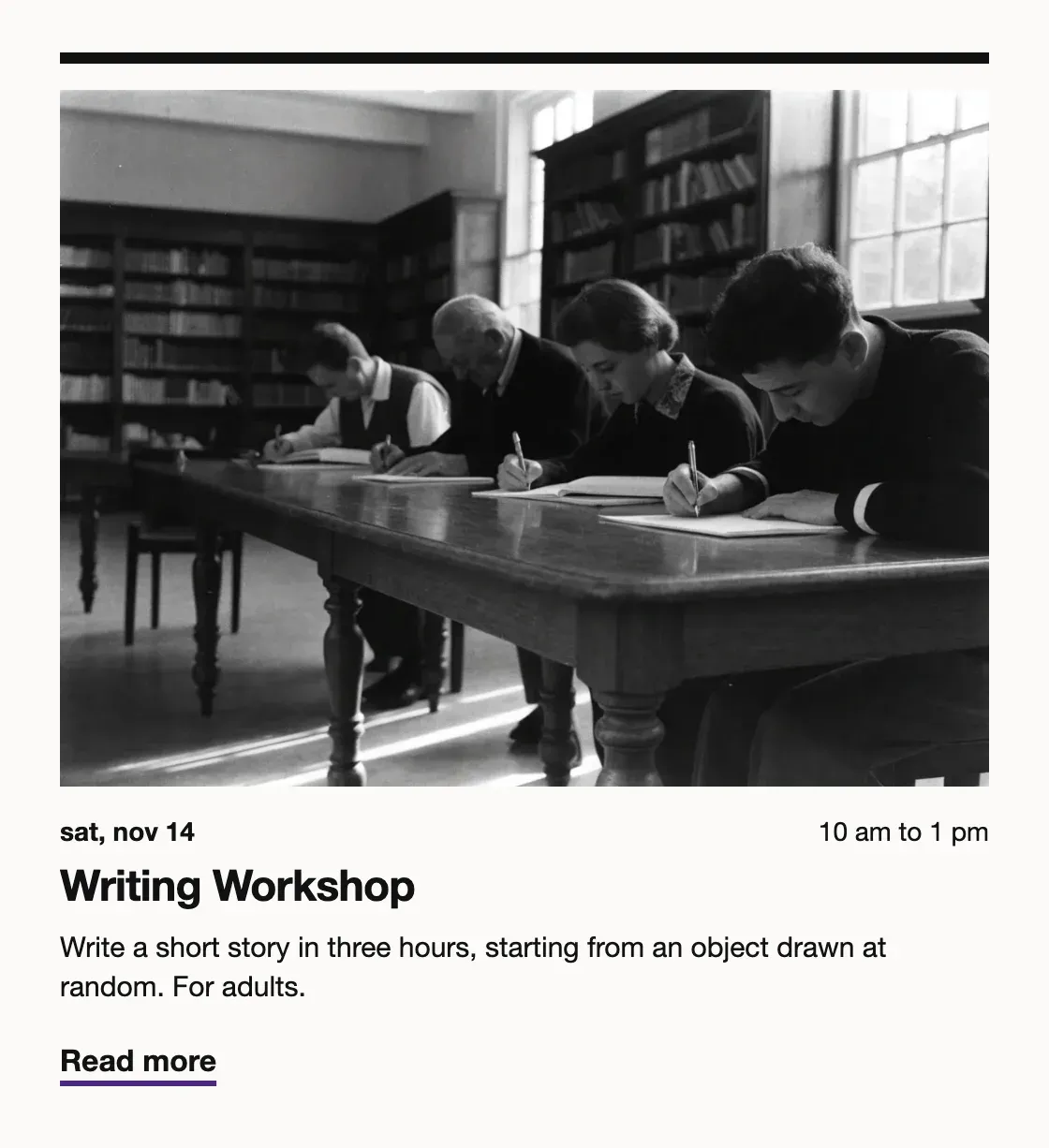
Take the events page of the Wisteria Public Library: six cards from one template, each with a date, an h3 title, a sentence and a “Read more” link. On screen, the title above each link says where it leads.
 Marker 1. The “Writing Workshop” title of the first card. Marker 2. The six “Read more” links, one at the bottom of each card.
To pick a link, a screen reader user can open the page's links list, or jump from link to link with Tab. Either way, the grid becomes six “Read more” in a row, with nothing to say which one leads to the writing workshop.
To find the right one, they must reread each card or open the links one by one. On screen, the card gives these links a meaning that the list strips away.
The fix is cheap, because all six cards share one template. A few words added to that template's link give every line of the list its card's title, and nothing changes on screen. Each link then makes sense on its own. WCAG, the W3C's accessibility guidelines, counts this hidden text as a sufficient way to state a link's purpose.
In the United States, public library websites fall under the ADA rule on state and local government sites. Its technical standard is WCAG 2.1 level AA. In Europe, EN 301 549, the reference standard for the European Accessibility Act, is based on WCAG too.
#Hidden text, aria-labelledby or aria-label: which fix to use
Go with hidden text: it adds the card's title to the link's name, keeps “Read more” where it is and needs no ARIA attribute. Whatever the technique, the accessible name, which is what the links list displays, must contain at least the visible words, in one piece.
WCAG requires this because people who control their computer by voice say the words they see. When those words are missing from the name, their command fails.
Starting the name with “Read more” is recommended but optional. “Writing Workshop: read more” works too, since capitalization and punctuation in the name may differ from the text on screen.
#How to add visually hidden text to a link?
Inside the link, after “Read more”, add a span with the visually-hidden class that holds “about” and the card's title. The name becomes “Read more about Writing Workshop”, and the screen doesn't change.
The classic slip is to hide that span out of habit with display: none or visibility: hidden. Both also hide it from assistive technologies, screen readers included, and the name goes back to a bare “Read more”.
Avoid
<a href="/events/writing-workshop">Read more<span style="display: none"> about Writing Workshop</span></a>Screen reader: « Read more, link »
Correct
<a href="/events/writing-workshop">Read more<span class="visually-hidden"> about Writing Workshop</span></a>Screen reader: « Read more about Writing Workshop, link »
Why. With no aria-label or aria-labelledby on the link, the browser builds the link's name from its content: the visible words stay, followed by the title. Some screen reader users and accessibility experts advise against hidden text as a general technique, because it can make the reading too wordy. The W3C still finds it useful when the hidden text isn't repetitive. Here the six hidden texts are six different titles, so put nothing else in them.
Here is the card template, which you'll adapt to your templating engine, then the CSS class from the hidden content entry in our glossary. If your site runs on Bootstrap 5, its visually-hidden class already does this job, and Tailwind ships the same thing as sr-only.
<article class="card">
  <p class="date">{{ date }}</p>
  <h3>{{ title }}</h3>
  <p>{{ summary }}</p>
  <a href="{{ url }}">Read more<span class="visually-hidden"> about {{ title }}</span></a>
</article>.visually-hidden {
clip-path: inset(50%);
height: 1px;
overflow: hidden;
position: absolute;
white-space: nowrap;
width: 1px;
} How to add a skip link: the HTML code and the keyboard test
#How to use aria-labelledby with multiple ids?
With aria-labelledby, you list the id of each element the name should come from, and the link's own text is left out. If you list only the title's id, the name becomes “Writing Workshop”, without the visible words.
The W3C describes a trick: a link can point to itself. List its own id first, then the title's. The texts are joined in that order, and the name becomes “Read more Writing Workshop”.
That name reuses text already shown on the page, so if the page gets translated, the name is more likely to be translated with it. Give the title and the link of each card a unique id in the template.
 Marker 1. The “Read more” link on the Writing Workshop card.
Avoid
<h3 id="title-writing">Writing Workshop</h3>
<p>Write a short story in three hours, starting from an object drawn at random. For adults.</p>
<a href="/events/writing-workshop" aria-labelledby="title-writing">Read more</a>Screen reader: « Writing Workshop, link »
Correct
<h3 id="title-writing">Writing Workshop</h3>
<p>Write a short story in three hours, starting from an object drawn at random. For adults.</p>
<a id="link-writing" href="/events/writing-workshop" aria-labelledby="link-writing title-writing">Read more</a>Screen reader: « Read more Writing Workshop, link »
#When to use aria-label?
Keep aria-label for the times you want a proper phrase that aria-labelledby can't build by joining two texts, such as “Read more about the Writing Workshop”. That phrase becomes the link's name in place of its text, so it must include the visible words.
Look out for an aria-label that leaves out “Read more”: the name loses the visible words, and a voice command that uses them fails.
 Marker 1. The “Read more” link on the Writing Workshop card.
Avoid
<a href="/events/writing-workshop" aria-label="Writing Workshop">Read more</a>Screen reader: « Writing Workshop, link »
Correct
<a href="/events/writing-workshop" aria-label="Read more about the Writing Workshop">Read more</a>Screen reader: « Read more about the Writing Workshop, link »
#How to check the links list in NVDA?
Check the fixed template where duplicate links are easiest to spot: in a screen reader's links list. If NVDA isn't on your computer yet, download it from NV Access.
Open the page in Firefox with NVDA running and press NVDA+F7 to open the Elements List. Pick links with the radio buttons in the dialog, and the list shows each link's name (NVDA User Guide).
Open that list once before you touch the template. On the Wisteria events page, it shows six identical “Read more” lines along with the header links. After the fix, each of those six lines starts with “Read more” and ends with its card's title.
Before you ship the template, check that:
On your own pages, the manual tests in Includdy go through the links and buttons of the page you analyze one by one, and suggest a verdict for each one, which you confirm or correct.