
NVDA screen reader: how to install it, set it up and test a web page

Your team wants to know whether the booking form works with a screen reader, and you have never used one. Start with NVDA, a free screen reader for Windows and the second most used on desktop in WebAIM's 2026 survey. You will install it, set it up, move through a page with its shortcuts and write down what you hear so a colleague can repeat the test.
From installation to verdict
#What is the NVDA screen reader and how do you install it?
A screen reader reads the screen aloud in a synthetic voice, or sends it to a braille display. Blind and low vision people use one to operate their computer. On a web page, it reads the text and, for each element, its name, its type and its state. With NVDA, you hear what your page tells a screen reader.
Take Slip Pottery Studio, which takes bookings online. All the pages you will test below belong to its site.
You need a PC running Windows 10 or 11. Download NVDA from the site of NV Access, which develops it, and note the version number.
NV Access ships several NVDA releases a year, so your result has to say which version you tested with. The latest stable release is 2026.3.
The downloaded file starts a temporary copy of NVDA that saves no settings. In its window, choose to install NVDA: only an installed copy gets the Ctrl+Alt+N shortcut that starts NVDA. Leave “Create desktop icon and shortcut key (control+alt+n)” checked.
Before you continue, uncheck “Use NVDA during sign-in” if it is checked. That box makes NVDA talk on the Windows sign-in screen, before you have even typed your password.
#How to start, stop and exit NVDA?
Three shortcuts get you going: Ctrl+Alt+N starts NVDA, Ctrl silences it, and NVDA+Q then Enter exits it. In these shortcuts, “NVDA” means the NVDA key, which you hold down the way you hold Ctrl. By default, it is Insert, or 0 on the number pad when Num Lock is off.
On a laptop with no Insert key and no number pad, pick the laptop keyboard layout the first time NVDA starts. It is a set of shortcuts designed for those keyboards. Also check the box that makes Caps Lock the NVDA key. To type in capitals, you then press that key twice quickly.
NVDA starts and begins talking. In the “Welcome to NVDA” dialog, choose the keyboard layout and the NVDA key. Uncheck “Start NVDA after I sign in”, then “Show this dialog when NVDA starts” so the window does not come back.
The voice stops at once. Press Ctrl whenever NVDA talks too much.
NVDA asks whether it should exit or restart.
NVDA closes.
#How to set up NVDA before you test a page?
Three settings prepare the test: the Speech viewer, a mouse that no longer makes NVDA talk, and a slower voice. The Speech viewer is a window that shows everything NVDA says. Hover over it or click inside it, and the text stops scrolling long enough for you to copy it. That text becomes the “Heard” line of your result.
With the arrow keys and Enter, open Tools, then Speech viewer. No shortcut reopens it by default, so check “Show speech viewer on startup” in its window.
NVDA stops reading whatever the mouse passes over. Without this setting, those announcements would clutter the Speech viewer.
Lower the rate, which is the speed of the voice, until you can follow it without effort.
The screen curtain turns the whole screen black, and you judge the page by ear. Press the shortcut again, or restart NVDA, to bring the screen back. Try it once you are comfortable with NVDA: while the screen is black, some screenshot tools may not work.
Leave every other setting as it is. WebAIM, a web accessibility organization at Utah State University, advises against changing any setting that alters what gets read, such as the punctuation level or document formatting.
#How NVDA works on a web page?
NVDA reads a web page in two modes, browse mode and focus mode, and the same key does different things in each. In browse mode, NVDA presents the page as one long text that you move through with the arrow keys. Along the way, it tells you whether a piece of text is a link, a heading or another kind of element. A single letter takes you to the next element of a type: H to the next heading, K to the next link.
In a text field, though, those letters have to be typed. NVDA then switches to focus mode, where almost every key goes straight to the field.
By default, NVDA switches on its own when you reach the field with Tab or click it. It goes back to browse mode when you press Esc, or when Tab takes you to a link or a button. On Slip Pottery Studio's search page, you can hear the same H key change meaning from one mode to the other.
You land in the search field, and NVDA switches to focus mode by itself.
The letter h appears in the field: you are in focus mode.
NVDA goes back to browse mode, and letters are shortcuts again.
NVDA jumps to the next heading on the page.
#Switching modes by hand
You can also switch modes whenever you like with NVDA+Space. If you enter focus mode that way, you stay there until the next NVDA+Space, and Esc does not take you out.
To make NVDA say the name of the mode, and the Speech viewer log it, uncheck “Audio indication of focus and browse modes”. That box is in the NVDA settings, in the Browse Mode category.
Tab only stops on elements that can receive focus, meaning they can become active from the keyboard: links, buttons and form fields. NVDA then says their name, type, state and value.
With NVDA, the rest of the page is read in browse mode. If you only test with Tab, you are checking keyboard navigation. To test with a screen reader, move through the page in browse mode too.
#NVDA shortcut keys for testing a web page
In browse mode, a letter takes you to the next element of its type, and the same letter with Shift takes you back to the previous one. H goes to the next heading, and Shift+H goes back to the one before. These are the desktop layout keys. With the laptop layout, only the “Say all” key changes.
NVDA moves to the first link in the menu, “Workshops”.
NVDA jumps to the first heading, “Book a workshop”.
NVDA moves to the first field, “Full name”.
NVDA goes back to the previous heading.
| Action | Keys |
|---|---|
| Next heading | H |
| Heading at level 1 to 9 | 1 to 9 |
| Next landmark | D |
| Next link | K |
| Next button | B |
| Next form field | F |
| Next list | L |
| List of headings, links, form fields, buttons or landmarks | NVDA+F7 |
| Say all, from where you are | NVDA+Down arrow (laptop: NVDA+A) |
| Window title, which includes the page title | NVDA+T |
| Element that has focus | NVDA+Tab |
| Switch between modes | NVDA+Space |
| Stop speech | Ctrl |
Type heading levels with the number keys along the top of the keyboard. With the desktop layout, the number pad keys review text.
Some sites have their own single-letter shortcuts. On those pages, NVDA+Shift+Space turns off NVDA's single letter navigation, and the letters go back to the site while you test its shortcuts.
#How to use NVDA for accessibility testing in Chrome and Firefox?
Test in Chrome first. In WebAIM's 2026 survey of screen reader users, it is the browser NVDA users pick most often. The pairing covers 17.3% of all respondents, and Firefox comes next at 9.1%, so repeat the test in Firefox on your most important pages. If your contract names a pairing, as the clause in our guide to accessibility specifications does with NVDA and Firefox, test that one first.
An element passes when NVDA announces its accessible name, meaning the name the code gives it, along with its type and, when it has one, its state or value. Judge the information conveyed: the W3C, the body that writes the web's accessibility rules, does not set the exact words a screen reader must say. When something is missing, read the code, since the problem can also come from the browser or the screen reader.
#Why the code still decides the verdict?
The US and European rules that set a technical standard measure a page against the WCAG success criteria. City, county and state websites must meet WCAG 2.1 at Level AA under the rule for public entities that the Justice Department adopted under the Americans with Disabilities Act. The deadline falls in April 2027, or a year later, depending on population. Federal agencies follow Section 508, which applies the same level of the older version. In Europe, EN 301 549 includes the same WCAG 2.1 criteria for web pages. None of these texts tells you which screen reader to use.
Some criteria are checked in the code alone. NVDA announces a field named only by an aria-label attribute without any trouble, yet the W3C notes that such a field can still fail Labels or Instructions, because sighted users see no label. Read the code before you give the verdict.
#The booking form, before and after the fix
Back to Slip Pottery Studio's booking form. To the eye, nothing is missing.
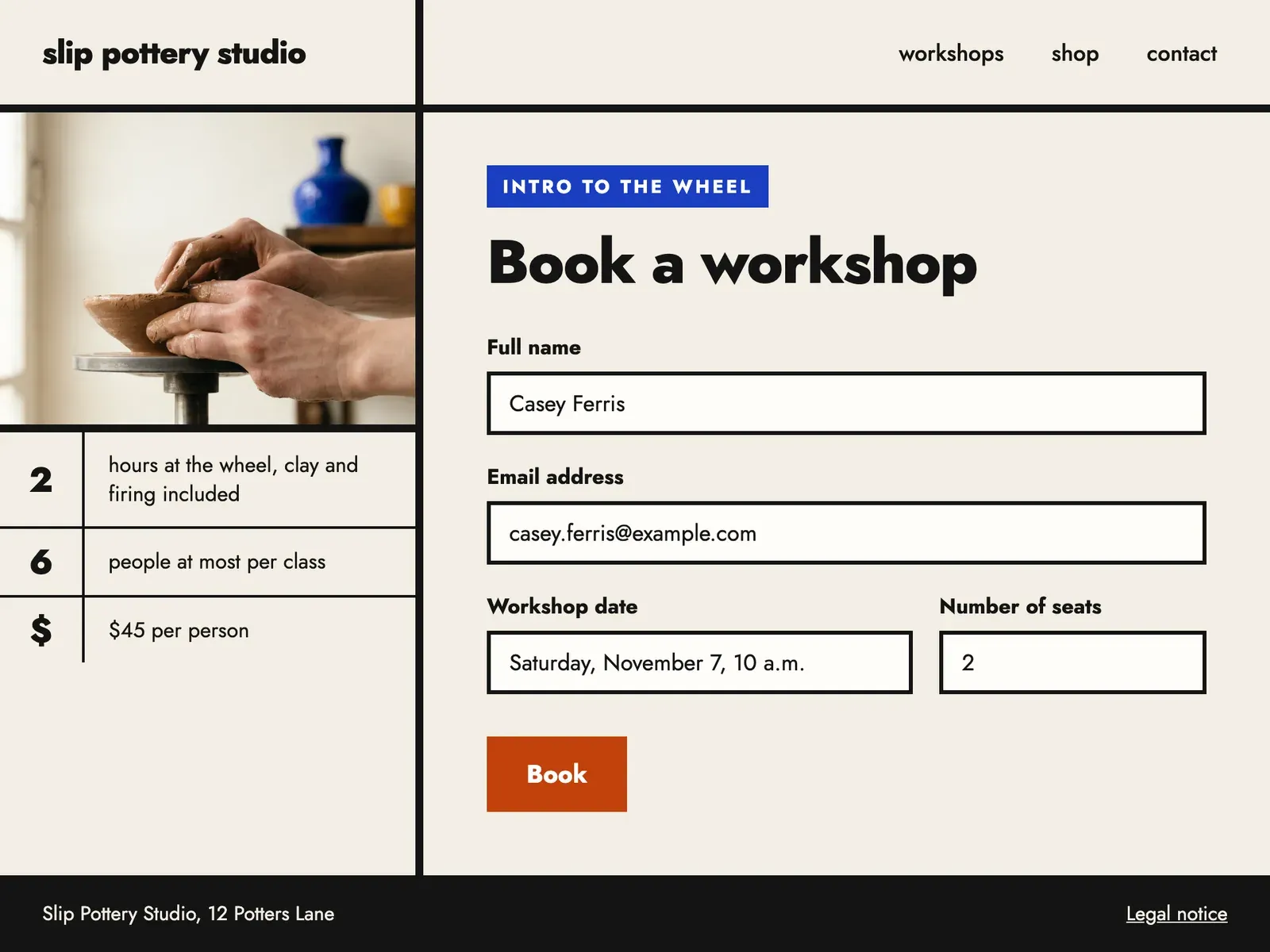
Its original code hides two defects: the email field's label is a <span> placed next to the field, and “Book” is a <div> that responds to clicks.
<label for="name">Full name</label>
<input id="name" type="text" autocomplete="name">

<span class="label">Email address</span>
<input type="email" required>

<div class="btn" onclick="book()">Book</div>Second press of F, in the email field: NVDA does not say what the field is for. Fail.
NVDA finds no button. Fail.
From the “Number of seats” field, Tab skips “Book” and goes straight to the footer link. Fail.
The fix replaces those two elements.
<label for="email">Email address</label>
<input id="email" type="email" required>

<button type="submit">Book</button>Second press of F, in the email field: NVDA says its name, its type and that it is required. Pass.
NVDA finds the button and says its name. Pass.
From the “Number of seats” field, Tab lands on the “Book” button. Pass.
Why. The browser reads the code to work out each element's name and type, then NVDA announces them. <label for> ties the text “Email address” to the field, and that text becomes the field's name. <button> gives the element the button type, and Tab can then reach it.
#Five checks to run on your own page
Check these five items in order.
Images, status messages (“Item added to cart”) and dialogs need their own checks. For images, see our article on alternative text.
#How to write up the result?
All that is left is to log the result so a colleague can repeat the test. Fill in this template, pasting the text copied from the Speech viewer into the “Heard” line, then add it as a comment on the ticket that reports the defect.
Screen reader test: Environment: NVDA , Chrome , Windows Steps: Heard: Expected: Verdict: WCAG criterion:
9 fields to fill
The “Expected” line says what NVDA should have announced. If Includdy has already flagged the defect, its test plan helps you fill it in: each test lists its steps and the expected result.
On Slip Pottery Studio's form, a scan with Includdy would have flagged the unnamed email field before you even opened NVDA. Your screen reader test can then focus on the rest of the journey.