
The aria-label attribute: when to use it and how to word it


When an icon button has no name, a screen reader announces it as just "button," with no clue what it does. The aria-label attribute gives the element the name a screen reader announces, for any button, link or field that shows no text to name it. Here is when to add it, what to write in it, what cancels it and how to check it.
A name for every element in the header
#What the aria-label attribute does?
aria-label is an ARIA attribute that gives an element its accessible name, the one assistive technologies receive. A screen reader speaks this name, usually before the role (the type of element), and someone who controls their phone by voice says it to activate the element.
The value of aria-label never appears on the page, while visible text helps everyone, including people who use no assistive technology. That is why the attribute is reserved for elements with no visible text.
For assistive technologies, aria-label replaces the content of a button or link, the alt of an image and the <label> of a field. For images, keep alt and follow the alt text guide.
Pinion Cycle Works is a bike shop whose header we follow through this guide. Its menu button holds nothing but a three-line icon.
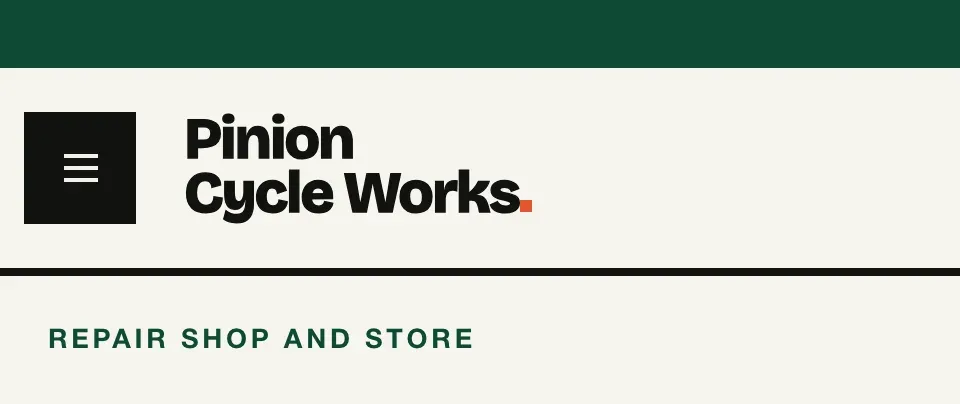
Avoid
<button type="button">
  <svg width="24" height="24" viewBox="0 0 24 24">…</svg>
</button>Screen reader: « button »
Correct
<button type="button" aria-label="Menu">
  <svg aria-hidden="true" focusable="false" width="24" height="24" viewBox="0 0 24 24">…</svg>
</button>Screen reader: « Menu, button »
Why. When the button gets focus, the screen reader usually announces its name, then its role. With no name, only the role is left: "button."
#When to use aria-label?
Before you write an aria-label, look for visible text, a <label> or an alt that could name the element. If that text appears somewhere else on the page, point to it with aria-labelledby. If there is no such text, aria-label supplies the name in three cases.
Icon-only buttons and links. The name goes on the <button> or <a> itself, and the SVG gets aria-hidden="true" and focusable="false", because it is only a drawing. The menu button keeps the name "Menu" whether the menu is open or closed. The open state comes from aria-expanded, set to false when the menu is closed and true when it is open.
Fields with no visible label. A visible <label> is still the best option. If the field shows only placeholder text, add aria-label, because a placeholder on its own gives only a fallback name.
When no other text sits near the field, though, someone using voice control will probably say the placeholder, and WCAG may then count it as the visible label. So make the placeholder say what the field is for, and repeat it word for word in aria-label.
Several regions of the same type. Two <nav> elements with different links each get a different name. A landmark that appears only once can do without one.
Pinion Cycle Works' header has all of these cases.
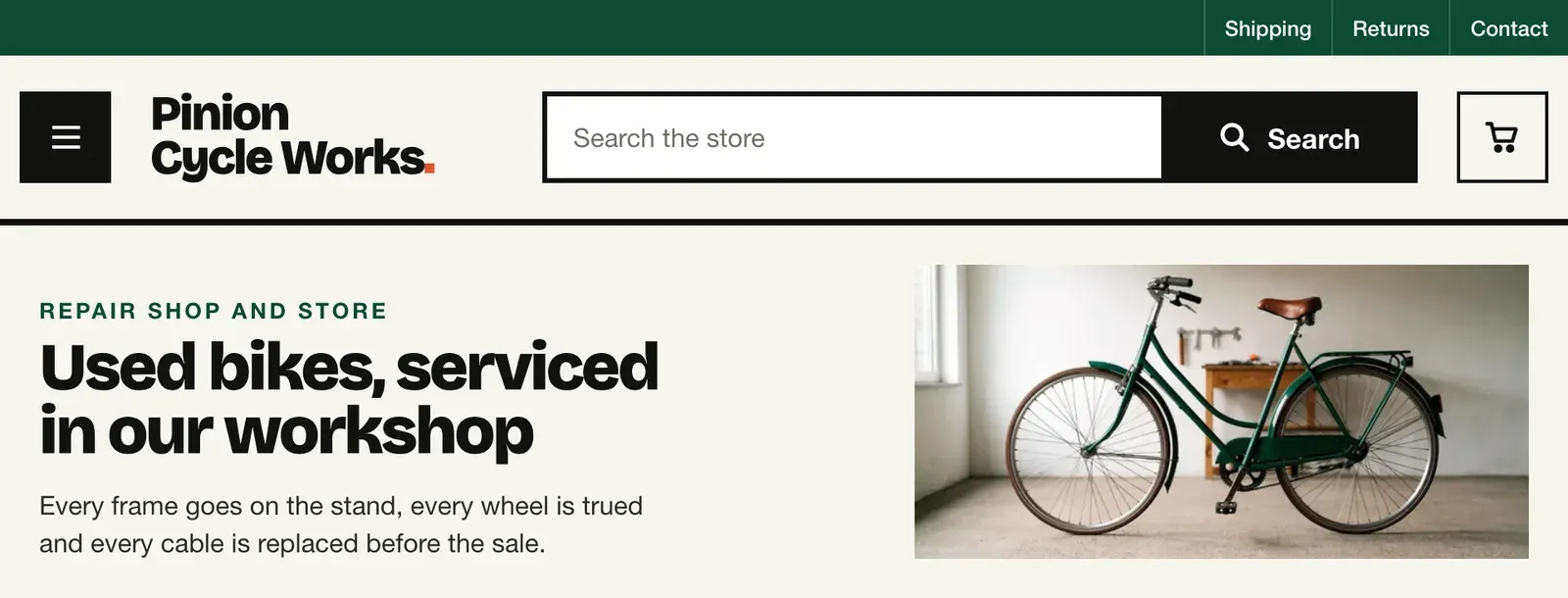
- Menu button, an icon that opens the list of departments:
aria-label="Menu",aria-expanded="false"and a hidden SVG. - Search field, with only the placeholder "Search the store":
aria-label="Search the store". - Search button, a magnifying glass and the word "Search": nothing, its text names it.
- Cart link, an icon on its own:
aria-label="Cart", which becomes its link text. - Top bar navigation (Shipping, Returns, Contact):
aria-label="Customer service". - Navigation opened by the menu (Bikes, Parts, Accessories, Workshops):
aria-label="Departments". - Text logo "Pinion Cycle Works" inside a link: nothing.
Here is the fixed header, ready to copy into your page template.
<header>
  <nav aria-label="Customer service">
    <ul>
      <li><a href="/shipping">Shipping</a></li>
      <li><a href="/returns">Returns</a></li>
      <li><a href="/contact">Contact</a></li>
    </ul>
  </nav>

  <button type="button" aria-label="Menu" aria-expanded="false">
    <svg aria-hidden="true" focusable="false" width="24" height="24" viewBox="0 0 24 24">…</svg>
  </button>

  <a href="/">Pinion Cycle Works</a>

  <form role="search" action="/search">
    <input type="search" name="q" aria-label="Search the store"
           placeholder="Search the store">
    <button type="submit">
      <svg aria-hidden="true" focusable="false" width="20" height="20" viewBox="0 0 20 20">…</svg>
      Search
    </button>
  </form>

  <a href="/cart" aria-label="Cart">
    <svg aria-hidden="true" focusable="false" width="24" height="24" viewBox="0 0 24 24">…</svg>
  </a>

  <!-- Shown by the Menu button -->
  <nav aria-label="Departments" hidden>
    <ul>
      <li><a href="/bikes">Bikes</a></li>
      <li><a href="/parts">Parts</a></li>
      <li><a href="/accessories">Accessories</a></li>
      <li><a href="/workshops">Workshops</a></li>
    </ul>
  </nav>
</header>#When not to use aria-label?
An aria-label does not belong on an element that ARIA forbids naming, such as a div or span with no role, a <p>, a <code> or a <strong>. Validators flag it as an error. Avoid naming a list item <li> as well, since assistive technologies do not announce that name.
A role attribute that accepts a name, such as role="button", makes aria-label valid. When an HTML element already does the job, like <button> or <a>, use it first: that is the first rule of ARIA use.
The attribute is also unnecessary on a button or link that shows text, because aria-label replaces that text. Someone who controls their computer by voice says the word they see, and if the name does not contain that word, the command fails.
WCAG covers this in success criterion 2.5.3, Label in Name, at Level A, the minimum level. So remove the attribute, and if some context is missing, make the name start with the visible text. On an image or a field already named by alt or <label>, an aria-label likewise adds a second text that someone has to keep up to date.
On Pinion Cycle Works' cargo bike page, each product card has an aria-label on its div that repeats the card's title.
 Marker 1. The title “Breeze cargo bike,” under the photo.
Avoid
<div class="card" aria-label="Breeze cargo bike">
  <h3>Breeze cargo bike</h3>
  <p>$2,490</p>
</div>Correct
<div class="card">
  <h3>Breeze cargo bike</h3>
  <p>$2,490</p>
</div>Why. A div with no role cannot take a name, and the card's heading already tells a screen reader user which bike it is.
In the header, a developer wanted to make the search button more explicit, even though it already shows the word "Search."
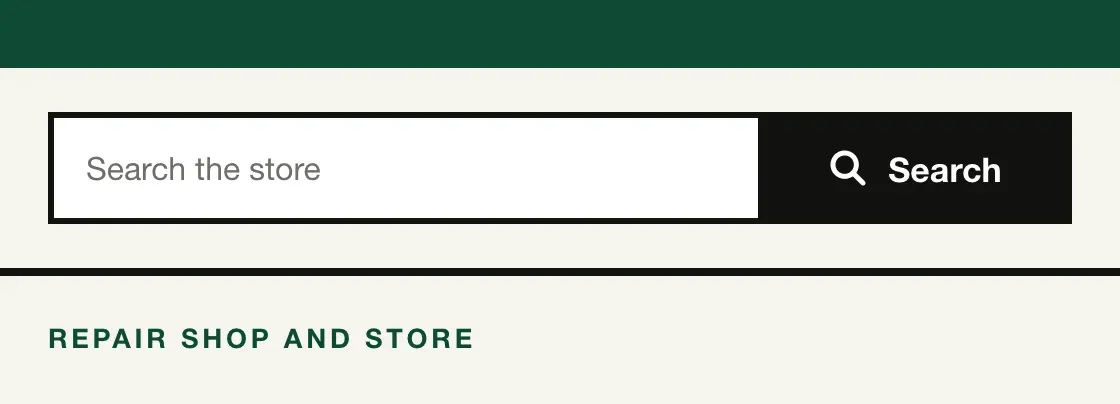
Avoid
<button type="submit" aria-label="Find products">
  <svg aria-hidden="true" focusable="false" width="20" height="20" viewBox="0 0 20 20">…</svg>
  Search
</button>Screen reader: « Find products, button »
Correct
<button type="submit">
  <svg aria-hidden="true" focusable="false" width="20" height="20" viewBox="0 0 20 20">…</svg>
  Search
</button>Screen reader: « Search, button »
Why. The button's name becomes "Find products" and loses the word "Search." Someone who says "Search" to their voice control software never reaches the button.
#How to write a good aria-label?
A good aria-label says what the element does, most often in one to three words. When the element shows text, start from that text and add any detail after it.
Leave the role out of the name: the screen reader announces the role on its own, so a navigation named "Customer service navigation" makes the listener hear the word twice. When the same action appears several times on a page, give each element its own name, with the important words first. For an action, that is often the verb, followed by the object that sets the element apart from its neighbors.
Translate the values along with the rest of the interface, as the W3C naming guide asks. In Adrian Roselli's tests, last run in July 2025, none of the four browsers tested automatically translated a dynamic aria-label, meaning one changed after the page loaded.
Chrome, Edge and Firefox also failed to translate content hidden on page load and revealed later, like the "Departments" navigation. That is why the values belong in your translation files, next to the visible text.
 Marker 1. The “View” link on the product card. Marker 2. The menu button in the header. Marker 3. The three identical trash cans in the cart. Marker 4. The cart icon in the French header.
| Rule | Avoid | Correct |
|---|---|---|
| marker 1 Visible text first: "View" link on a product card | "Breeze cargo bike details" | "View Breeze cargo bike" |
| marker 2 What it does, without its look or role: menu button | "Hamburger button" | "Menu" |
| marker 3 A unique name for a repeated action: three trash cans in the cart | "Remove""Remove""Remove" | "Remove bike lock""Remove pannier""Remove pump" |
| marker 4 The page's language: French version of the site | "Cart" | "Panier" |
#Why aria-label is ignored?
An aria-label can be overridden by aria-labelledby, ignored when it is empty, or made useless by the element's role or by aria-hidden. The attribute is right there in the HTML, yet the Accessibility tab shows a different name, or none at all.
| What happens | Final name | What to do |
|---|---|---|
The element also has aria-labelledby, pointing to an existing id | The referenced text. If the id does not exist or the text is empty, aria-label becomes the name | Keep only one of the two attributes |
aria-label="", or a value made only of spaces | Attribute ignored: the name comes from the next source (<label>, alt, content), or stays empty | Write the attribute only when there is a value |
aria-hidden="true" on the element or on a parent | None: the element disappears for assistive technologies, name and all | Remove aria-hidden from any focusable element and from its parents |
A role that forbids naming: div or span with no role, p | Empty | Remove the attribute, or name the button or link involved |
role="presentation" and aria-label on the same element, a combination ARIA forbids | The aria-label value if the original role accepts a name: the browser ignores role="presentation" and the element keeps its role | Remove one of the two, depending on whether the element should be hidden or named |
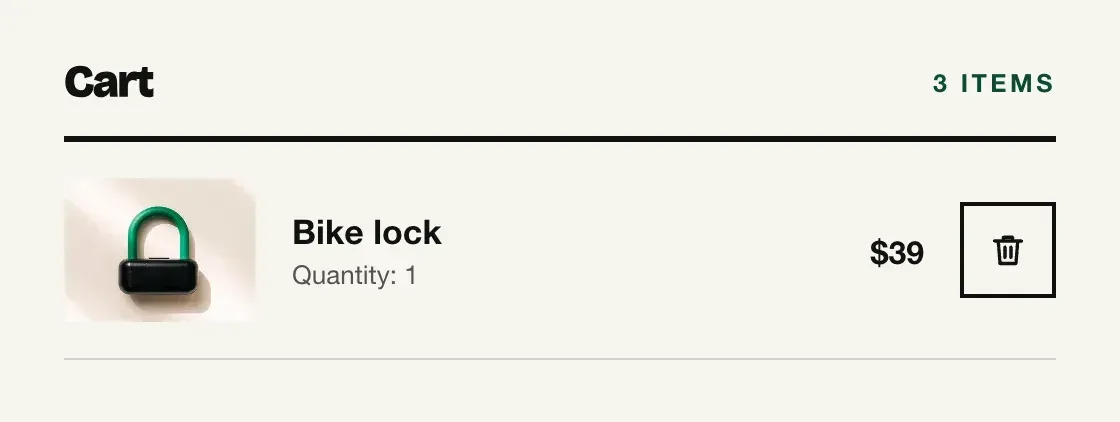
In a page template, an empty variable outputs aria-label="" with no visible change on screen, as on this trash can in Pinion Cycle Works' cart, and the browser then ignores the attribute. So check that the variable is not empty before you write aria-label.
Avoid
<button type="button" aria-label="">
  <svg aria-hidden="true" focusable="false" width="20" height="20" viewBox="0 0 24 24">…</svg>
</button>Screen reader: « button »
Correct
<button type="button" aria-label="Remove bike lock">
  <svg aria-hidden="true" focusable="false" width="20" height="20" viewBox="0 0 24 24">…</svg>
</button>Screen reader: « Remove bike lock, button »
#How to check that aria-label works?
Check the name in two steps: read it in the browser's developer tools, then listen to it with a screen reader. In Chrome, select the element in the Elements panel, open the Accessibility tab and read the Name line under Computed Properties.
The "Show accessibility tree" option displays the page the way assistive technologies receive it. In Firefox, the Accessibility Inspector shows the same name, or null when the element has none.
 Marker 1. The menu button, to the left of the logo.
Then spend thirty seconds with a screen reader. On Windows, install NVDA, which is free; on a Mac, VoiceOver is built in and starts with Command+F5, and NVDA can run in a Windows virtual machine. Move through the header with the Tab key, and each element will usually announce its name and then its role, for example "Cart, link."
Automated tests built on axe-core flag a missing name with the button-name, link-name and label rules. A named div shows up under aria-prohibited-attr: as an error if it is empty, as an item to review if it contains text. The label-content-name-mismatch rule catches a name that does not contain the visible text, and it has been on by default since axe-core 4.14.0.
On the Pinion Cycle Works site, a scan with Includdy flags the header's menu button, which has no name. Includdy also suggests a code fix that gives it one, for you to review before you merge it.
Before you ship the header:
If your header is already live, start by running it through an Includdy scan: you will see which elements have no name, and Includdy will suggest a fix for each one for you to review. Then go through the seven items on the checklist before you ship.